
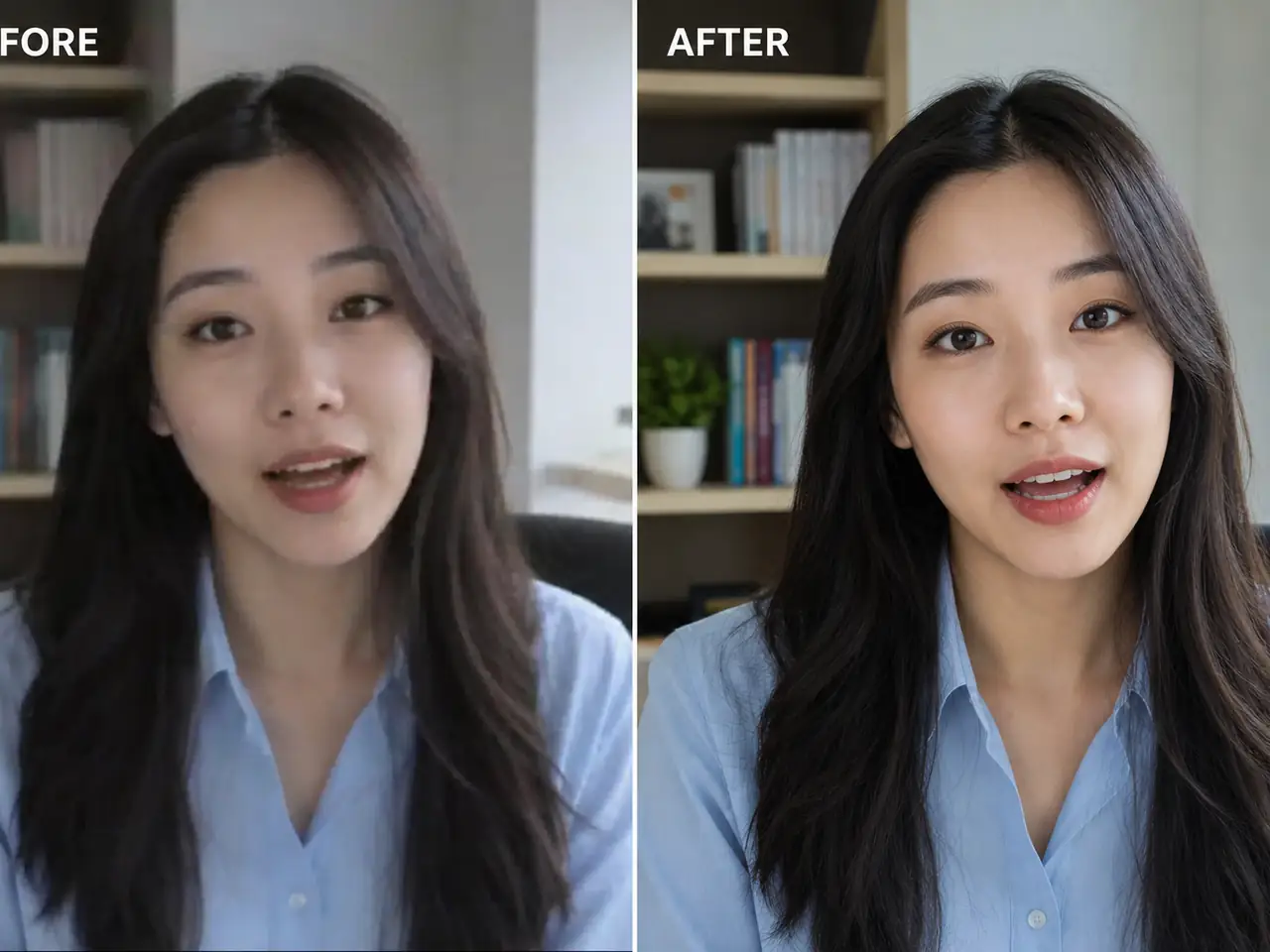
Portrait video cleanup
Sharpen talking-head videos, creator clips, interviews, and profile footage before publishing.
 ImagineHub
Ready for Generating
Enhance existing clips with AI upscaling. Choose a source-matched preset and a 480p, 720p or 1080p target, then preview and download the result.
Video enhancement examples
Use AI Video Enhancer for creator clips, product videos, travel footage, old archives, and everyday videos that need more clarity.
Sharpen talking-head videos, creator clips, interviews, and profile footage before publishing.
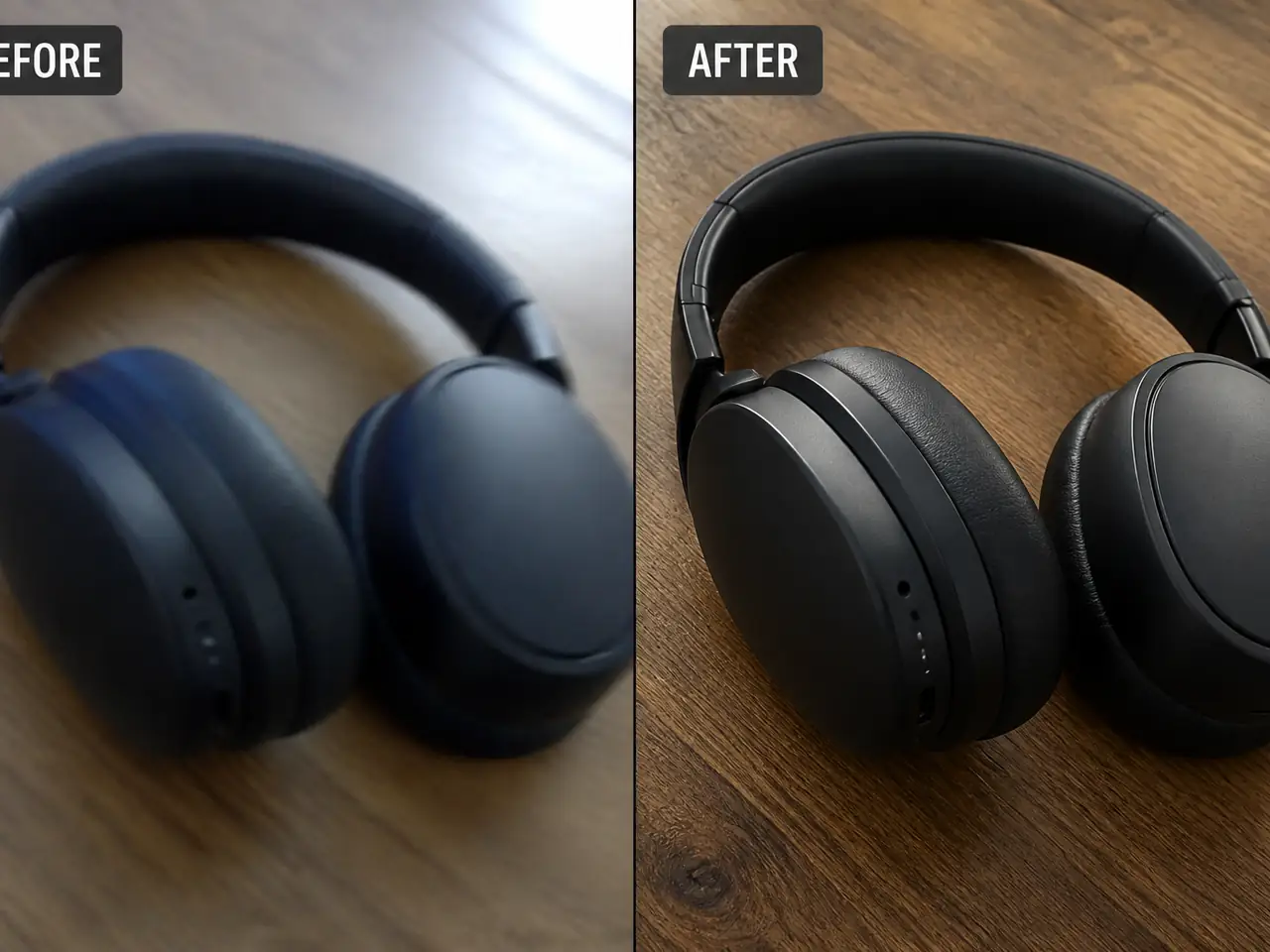
Improve product demos, tabletop clips, marketplace videos, and promotional footage.

Recover detail and color in mobile travel clips, city scenes, landscapes, and lifestyle videos.
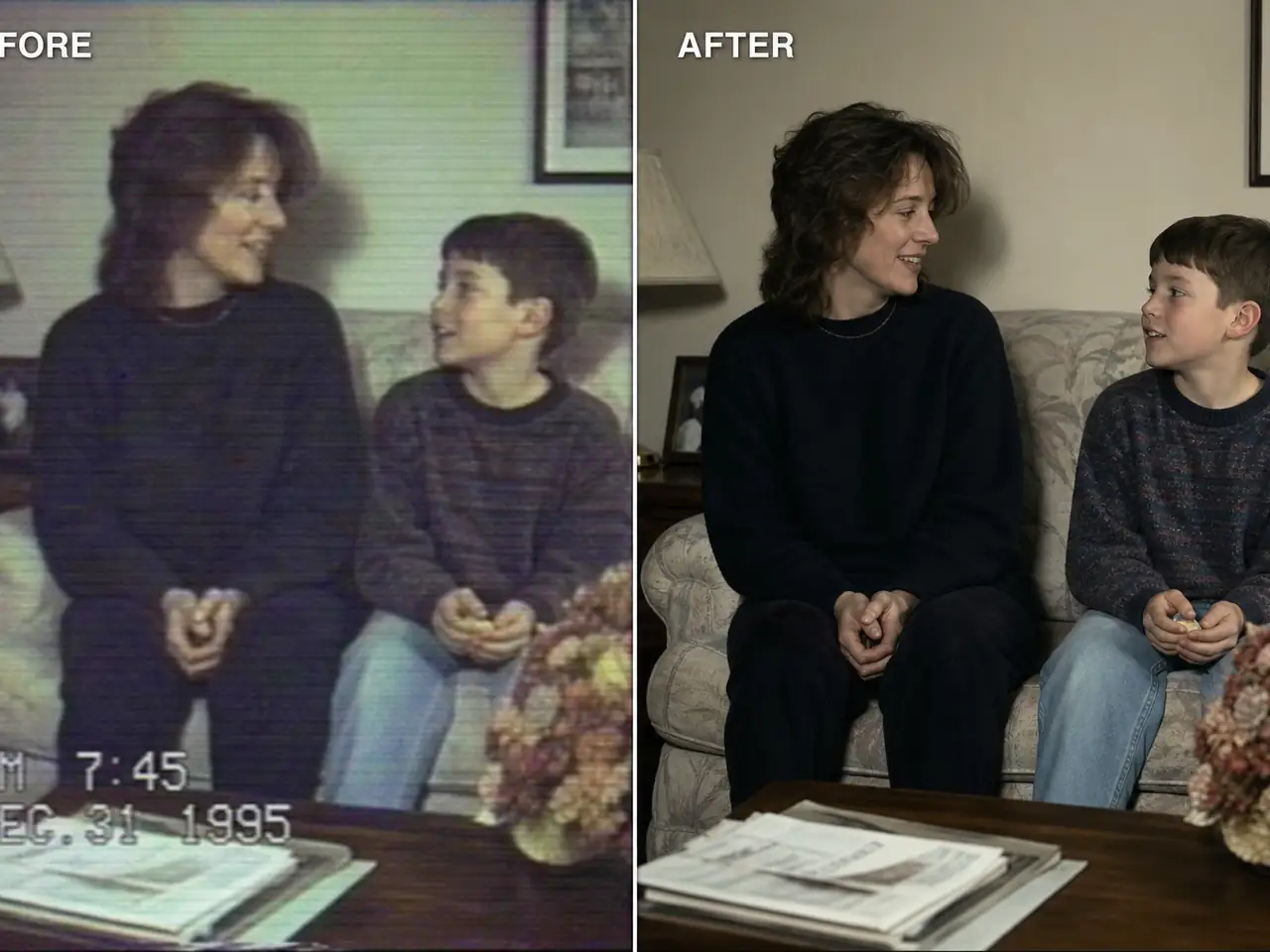
Reduce noise and improve the look of older home videos, archive footage, and low-quality clips.
How it works
The workflow keeps video enhancement practical: upload footage, choose the enhancement target, then download the improved result.
Choose a source clip that needs sharper detail, higher resolution, cleaner compression, or better visual quality.
Enhance existing clips with AI upscaling. Choose a source-matched preset and a 480p, 720p or 1080p target, then preview and download the result.
Generate the enhanced video and check the preview before downloading it for publishing, archiving, or editing.
Core features
AI Video Enhancer focuses on practical quality improvements for many video types, not a single visual style.
Enhance existing clips with AI upscaling. Choose a source-matched preset and a 480p, 720p or 1080p target, then preview and download the result.
Improve visible edges, textures, faces, objects, and scene details when the source allows it.
Reduce the rough look of heavily compressed clips, phone videos, and reused social footage.
Choose General for everyday footage, UGC for creator videos, AIGC for generated videos, or Old Film for archival footage.
Use video enhancement when a clip is useful but needs more clarity before publishing, archiving, or editing.
Improve clips for TikTok, Shorts, Reels, creator profiles, and daily social publishing.
Clean up product demos, ads, landing page videos, and marketplace footage.
Refresh old home videos, archive footage, low-quality downloads, and saved memories.
Upgrade phone videos, reaction clips, tutorials, talking-head content, and short-form edits.
AI enhancement works best when the source video still contains useful detail and readable motion.
Start with the highest-quality source file you have before upscaling.
Use short clips first so you can compare settings before spending more credits.
Choose old film mode for archival footage and UGC mode for phone or creator videos.
Avoid expecting perfect recovery from extremely blurry, tiny, or heavily damaged videos.
Compare monthly and yearly plans for AI image and video generation.
$166.8 USD billed yearly
$418.8 USD billed yearly
$838.8 USD billed yearly

All payments are securely processed by Stripe.
Common questions about enhancing video quality with AI.
It enhances an existing video rather than creating a new scene. The selected mode and target resolution guide the clarity, detail, and resolution improvements.
Enhance existing clips with AI upscaling. Choose a source-matched preset and a 480p, 720p or 1080p target, then preview and download the result.
It can improve some blur, but cannot guarantee recovery of missing detail. Use the best source file available and test a short clip first.
Choose General for everyday footage, UGC for creator videos, AIGC for generated videos, or Old Film for archival footage.
Yes. The credit estimate depends on video duration and target resolution. Check the current estimate in the tool before generating.
You are responsible for the rights to the source video, people, brands, audio, and final usage. Use original, licensed, or authorized footage for commercial work.
Choose an image or video tool to start creating.
Generate images and videos with ImagineHub. Turn text and references into visuals with AI tools.